
Job hunting while juggling everything else is messy. You apply on a company career page during lunch, send two more through LinkedIn at night, and get a referral link from an old coworker on the weekend. Two weeks later, a recruiter calls, and you can’t remember which role it was for or which resume you sent.
Silence and ghosting make the situation even worse. In an October 2025 iHire survey of 1,024 job seekers, 53% said an employer had ghosted them during their search. The most common point was right after submitting an application. When that much of the process goes quiet, your own records are often the only way to know which applications are still alive.
I built this free Job Application Tracker Spreadsheet for that exact reason. It logs where you applied, who you talked to, what you sent, and when to follow up.
Download Free Job Application Tracker Template (Google Sheets)
Below, I’ll walk through each column, show how the automatic follow-up reminders work, and explain when a spreadsheet stops being enough.
What to Track in a Job Application Spreadsheet
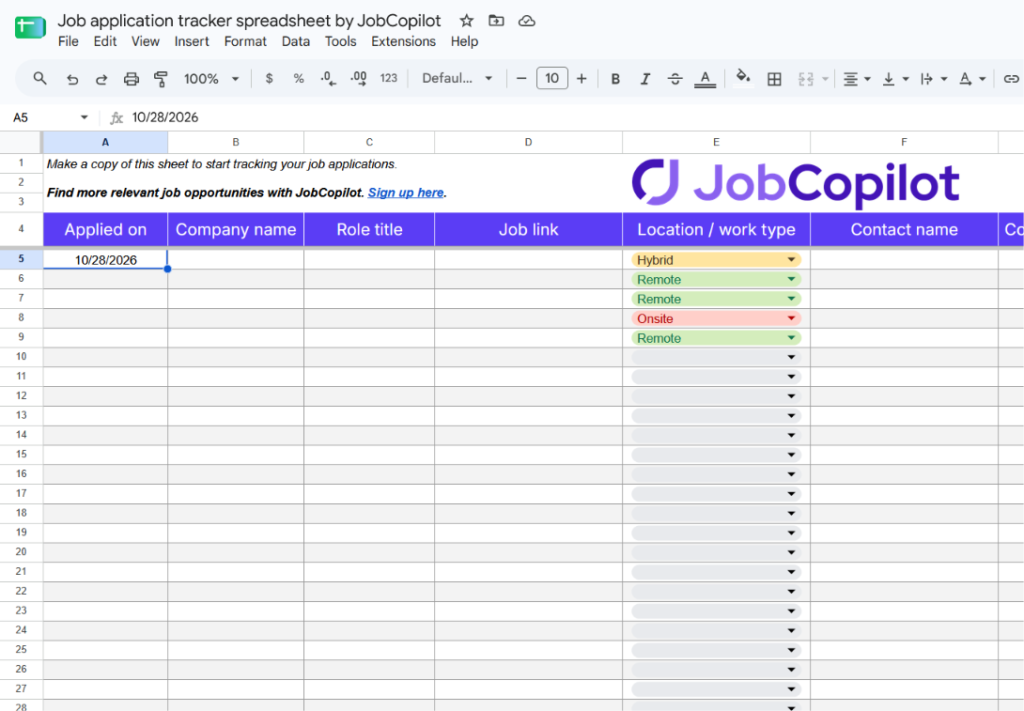
Every column in this template answers a question you’ll have later, usually at a bad moment. Like when a recruiter calls, and you have 10 seconds to remember the job. Here’s what each one is for.
Applied on
Enter the exact date you hit submit. This column also powers the automatic follow-up date, so a missing or guessed date throws everything off.
Tipp: Use a real date format (like 2/2/2026), not text like “Feb 2nd.” Google Sheets can’t do math on text.
Name des Unternehmens
Use the official company name. If you applied through a recruiting agency, write the hiring company here and note the agency name in Notes.
Titel der Rolle
Copy the title exactly as it appears in the posting. Bigger companies often list several similar roles at once, and “Operations Manager” and “Operations Program Manager” are easy to mix up.
Tipp: If the posting shows a job ID or requisition number, add it in brackets. HR teams often ask for it when you follow up.
Job link
Paste the link to the posting. Postings get taken down once a role fills or pauses, sometimes within a few weeks. Having the link lets you reread the job description before an interview, as long as it’s still up.
Tipp: For roles you really want, save the job description as a PDF too. A dead link right before an interview is a bad surprise.
Location/work type
Pick Remote, Hybrid, or Onsite from the dropdown. It affects your salary expectations, your commute math, and which questions you should prepare for, like timezone overlap for remote roles.
Contact name
Add the recruiter or hiring manager’s name once you have one. If you don’t have a name yet, leave it blank. Don’t guess.
Contact email / LinkedIn
Save their email or LinkedIn profile link here. It turns a follow-up into a two-minute task instead of a 20-minute search.
Current status
This is where each application stands right now. I’ll cover each status option in the next section.
Next follow-up
This date fills in automatically, 10 days after your Applied on date. I’ll show how it works (and how to change it) further down.
Resume version
Use short labels like “v3-ops” or “v5-remote-PM.” If you sent a cover letter, add “+CL” to the label. Once interviews start coming in, you can see which versions are actually working.
Notes
Keep this short on purpose. Good things to add are the salary range from the posting, a referral’s name, interviewer names, or anything odd about the role. If you won’t remember it in two weeks, it goes here.
How the Status Options Work
The Current status column has five color-coded options. Update it the moment something changes, because the follow-up reminder depends on it.
| Status | When to use it | What to do next |
| Angewandt | You submitted the application and haven’t heard back | Wait for the follow-up date |
| Antwort erhalten | A recruiter or the company replied | Reply within a day or two, and add the contact’s details |
| Interview geplant | You have an interview on the calendar | Reread the job description and prep |
| Abgelehnt | You got a no | Keep the row. Don’t delete it |
| Angebot | You got an offer | Compare it against other open applications before you answer |
How the Automatic Follow-Up Reminders Work
You don’t have to calculate follow-up dates or remember to check them. The sheet does both.
The follow-up date fills itself in
As soon as you enter an Applied on date, the Next follow-up column adds 10 days. Apply on February 2, and your follow-up date shows February 12. If the Applied on cell is empty, the follow-up cell stays empty too.
How to change the 10-day window
Ten days is my default, not a rule. If you’d rather follow up after a week or two, here’s how to change it.
- Click the first cell under Next follow-up.
- Change the 10 in the formula to 7, 14, or whatever you prefer.
- Copy that cell down the rest of the column.
You can also type a date over the formula in any single row. That’s handy when a recruiter tells you something specific, like “we’ll decide by the 20th.”
Tipp: Don’t follow up on everything. Save your follow-ups for the roles you actually want. A thoughtful note to five companies beats a copy-paste nudge to 30.
Tips to Get the Most Out of Your Tracker
A tracker only helps if you keep using it. These habits made the biggest difference for me.
- Log it before you close the tab: The job link, title, and resume version are right in front of you. Wait until tonight, and half of it will be gone.
- Start with active applications only: Don’t try to backfill every job you’ve applied to this year. Add new ones first, then add older ones only if they’re still in play.
- Do one weekly review: Pick a day, sort by Next follow-up, and deal with the red cells. Fifteen minutes a week is enough. Checking daily just adds stress.
- Write down the posted salary range: Put it in Notes when you apply. It helps a lot when a recruiter asks for your expectations on the first call.
- Mark referrals: Add “Referral: [name]” in Notes. Over time, you’ll see whether referrals get you more replies than cold applications.
- Never delete rejections: They stop you from reapplying to the same team by accident, and they help you spot patterns.
- Use one copy per search: If you’re running two different searches, like your current field and a career change, keep a separate copy for each. Mixing them makes the patterns harder to read.
“A shorter list of applications you actually care about is easier to track, and easier to follow up on properly.”
Common Problems With Job Application Tracker Spreadsheets
A spreadsheet works well early on. But once your search gets busier, a few problems show up.
- Every update is manual: Each new application, status change, and contact detail has to be typed in by you. On a busy week, keeping the sheet current becomes its own chore.
- Reminders only work if you open the sheet: The red cells are helpful, but they don’t send you anything. If you skip a week, overdue follow-ups just sit there.
- Job links die: You saved the link, but the posting is gone when you need it. Unless you saved the description separately, the details are gone too.
- Small mistakes break things quietly: A date typed as text, a pasted row that overwrites a formula, or a deleted dropdown can mess up the sheet without any warning.
- It only records what already happened: A spreadsheet can’t help you review or improve an application before it goes out. It just logs it afterward.
- It’s clunky on your phone: Recruiters call when you’re away from your laptop. Scrolling a wide spreadsheet on a phone to find one row isn’t fun.
- The habit slips: When updates feel repetitive, you start skipping them. After that, you stop trusting the sheet, and it stops being useful.
A Smarter Alternative to a Job Application Tracker Spreadsheet
Once your search picks up, you end up spending more time maintaining the tracker than applying. That’s when a dedicated tool starts to make sense.
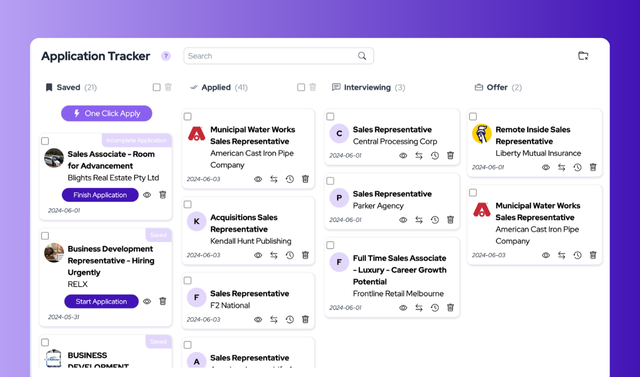
JobCopilots Bewerbungs-Tracker is built into the same platform that finds and applies to jobs for you. Your copilot searches for new roles every 2 hours on official company career pages from 500,000+ companies worldwide. Jobs that match your filters land in the tracker automatically, either in the Saved column for you to review or in the Applied column if you turned on auto-apply.
It isn’t a mass-apply tool. You decide how selective the AI should be, and you can review and edit every AI-written answer before an application goes out. Those edits also teach your copilot how you write, so future applications sound more like you.
Here’s what you get beyond a spreadsheet.
- No manual logging: Every saved or applied job is added to the tracker for you.
- Full job descriptions kept inside the tracker: No more dead links right before an interview.
- Drag-and-drop stages: Move applications from Applied to Interviewing to Offer on a kanban-style board.
- Review mode: See and edit AI-generated answers before anything is submitted.
- Nur verifizierte Jobs: Listings come from official company career pages, not job boards full of duplicates and scams.
- Daily email recap: A summary of new matches and applications lands in your inbox, so you don’t have to remember to check.
- Jobs from anywhere: Add jobs manually from any source, or use the Chrome-Erweiterung to autofill applications on other sites.
- Help with follow-ups: The networking assistant suggests who to connect with on LinkedIn after you apply, with ready-to-use message templates.
Spreadsheet vs. Job Application Tracking Tool
There’s no wrong answer here. It depends on how active your search is and how much you want to manage by hand.
Use the spreadsheet if you:
- Are applying to a handful of roles at a time
- Want something free that works in two minutes
- Don’t mind updating it yourself once a week
Use a tracking tool if you:
- Are actively searching and applying every week
- Want new jobs found and logged without the manual work
- Want to review applications before they go out, not just record them after
- Are running more than one search, like different roles or countries
Find, review, and track applications in one place. Sign up for JobCopilot’s Application Tracker.
Automatisieren Sie Ihre Bewerbungen mit KI 🚀
Testen Sie den führenden KI-Copiloten für Arbeitssuchende - autonom, sicher, vollständig personalisiert, und das Vertrauen von mehr als 100.000 Nutzern, um schneller zu Vorstellungsgesprächen zu kommen.
JobCopilot → AuscheckenFAQs
How long should I wait before following up on a job application?
About one to two weeks is a reasonable window for most roles. That’s why the template defaults to 10 days. If the posting or recruiter gives you a timeline, follow that instead.
Should I track jobs I’ve saved but haven’t applied to yet?
Yes, if you’re likely to apply soon. Add the row and leave Applied on blank. The follow-up date stays empty until you actually apply, so it won’t flag anything early.
Can I use this template in Excel?
Yes. In Google Sheets, go to File → Download → Microsoft Excel (.xlsx). The columns and formulas come with it, but check that the dropdowns and colors look right after you open it.
How many applications should I track at once?
There’s no magic number. A better test is time. If your weekly review takes much longer than 15 to 20 minutes, it’s time to trim the list or move to a tracking tool.
Can a tracker actually help me get hired?
Not directly, but it helps with the things that do. You follow up on time, you reply faster when a recruiter reaches out, and you walk into interviews knowing exactly what you applied for.